You track ChatGPT mentions in Business Hub, a free dashboard OpenAI opened on November 10, 2026. First you claim your business profile, then the dashboard shows how often ChatGPT mentions you. We set up Designed Life Marketing and one of our clients on November 26. Below is every step, plus how to turn those numbers into your next blog topics.
What counts as a ChatGPT mention?
For a local business listing, a mention counts when ChatGPT shows your business as a result. An online business only gets a mention when ChatGPT points to its website. Your business name on its own doesn’t count.
Alongside mentions, the dashboard shows how many people viewed your ChatGPT profile and clicked through to your website. It also lists the top topics that came up in the answers that mentioned you.
Is it worth setting up Business Hub?
Yes. It’s free, and it’s the first time ChatGPT has told business owners how often it names them. Most small businesses have never known whether ChatGPT mentions them at all.
Setting it up won’t move you up in ChatGPT’s answers, and OpenAI says so itself. Your website and your Google presence still do most of the work. ChatGPT keeps learning about you from other sites, so what Google wants from a business website still helps you here.
Can a Canadian business track ChatGPT mentions?
Yes. Designed Life Marketing and our client are both Edmonton businesses, and both were already listed in Business Hub. Each listing came with details pulled from our Google Business Profiles, so most of the profile filled itself in. Our guess is the Google profiles are why we were listed.
Shops and restaurants may have to wait. OpenAI says local stores and restaurants can claim only an existing U.S. listing for now. Businesses with a website can add a listing anywhere ChatGPT is available.
Business agents are the one piece Canadians can’t use yet. A business agent is a chat assistant that answers customer questions about your business inside ChatGPT. OpenAI offers them only to eligible U.S. businesses for now.
What do I need before I start?
You need a ChatGPT account, a way to prove you own the business and government-issued ID. Gather these first:
- A ChatGPT account tied to a business email. Use an address the business owns, not a staff member’s personal email.
- One way to prove ownership. Your business phone, your business email or access to your domain’s DNS settings will do. DNS settings are the records that point your domain to your website and email.
- Access to your DNS, even if you verify by phone. You need it to change the website address on your profile later.
- Government-issued ID and your incorporation or registration number for the identity check.
- Your logo and a short description, written to match your Google Business Profile.
Should I check ChatGPT before I set it up?
Yes. Write down what ChatGPT says about you today, before you change anything, or you’ll never know what changed. Our rule for every client is the same: ask the same questions, the same way, before and after.
- Open a Temporary Chat in ChatGPT, so your past chats don’t colour the answers.
- Ask the questions your customers really ask, typed the way they’d type them. Leave out your city.
- Ask about your business by name last, so your name doesn’t steer the earlier answers.
- Copy the whole chat and save it with the date.
A month later, ask the same questions again, word for word. Changing even one question breaks the comparison.
How do I set up Business Hub, step by step?
Open Business Hub, find your business, verify it and pass the identity check. Every step happens in ChatGPT in your web browser.
Step 1: Open Business Hub
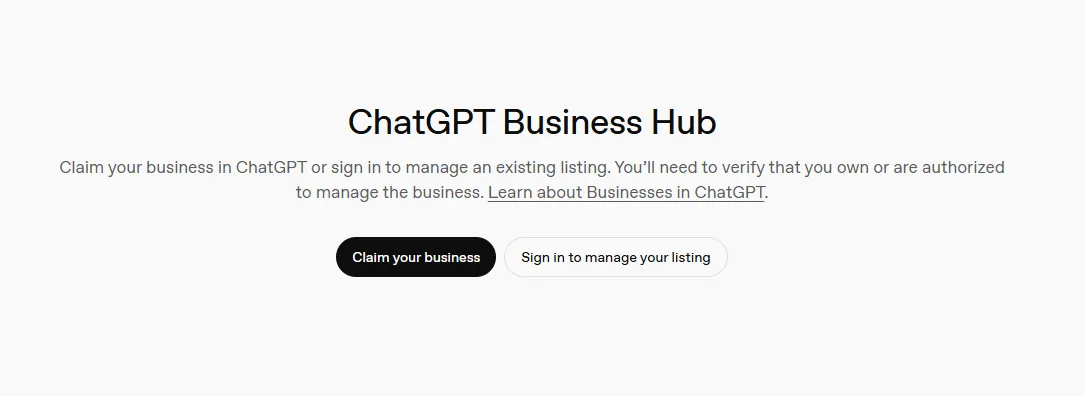
Sign in to ChatGPT at chatgpt.com. Click Business Hub in the left sidebar, or go straight to chatgpt.com/business-hub.
Step 2: Find your business or add it
Type your business name into the search box. When your listing shows up, select it and confirm the ChatGPT account that will manage it.
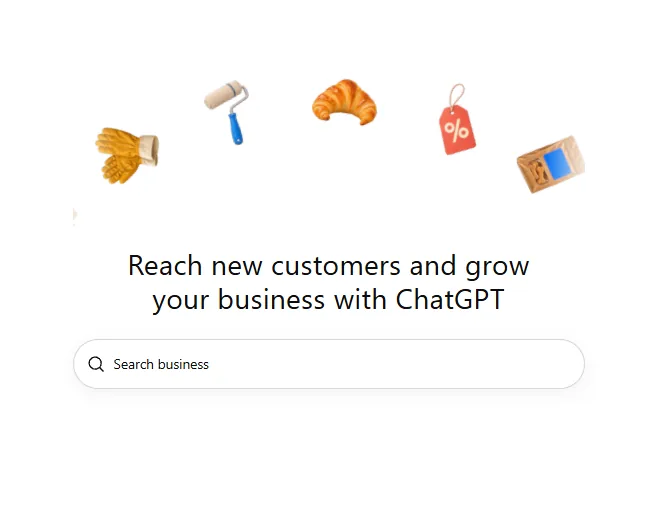
If nothing shows up, look for the option to add your business. Use the name your customers know you by, because that’s the name they’ll see on your profile.
Step 3: Prove you own the business
Pick one of the verification options ChatGPT shows you:
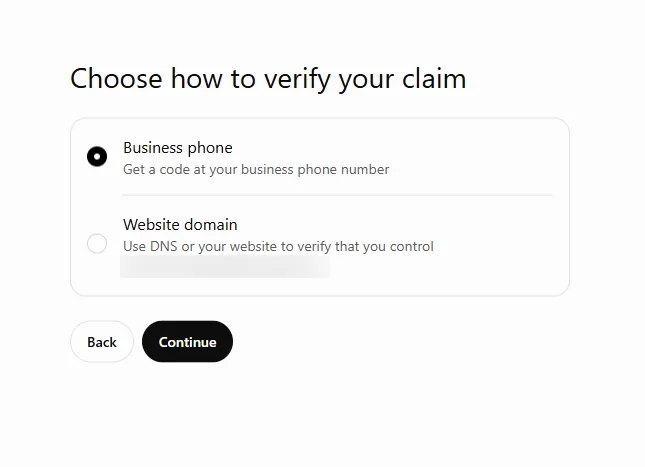
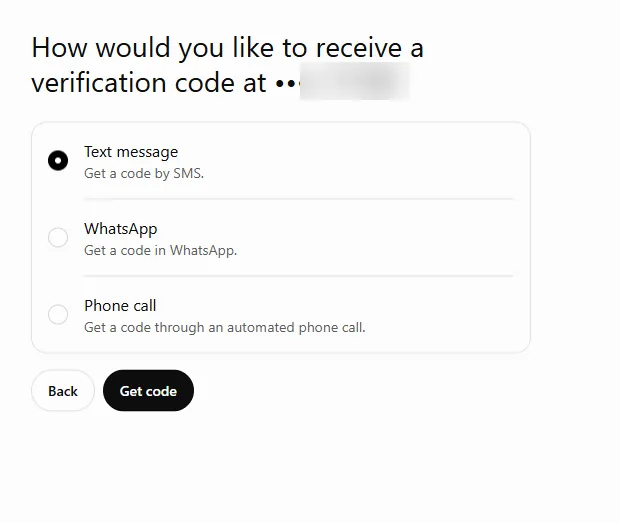
- Business phone: choose a text or an automated call, select “Get code” and enter the code.
- Business email: select “Get code” and enter the code sent to your business address.
- Website domain: ChatGPT gives you a TXT record, a line of text that proves you control the domain. Add it to your DNS settings, copying the type, name and value exactly. Go back to ChatGPT and select “Verify domain.”
- Shopify store: select “Connect Shopify” and sign in to your store.
The phone was fastest for us. We verified our own business by phone and were in the dashboard in under 20 minutes. The identity check came at the same time. Our client’s website domain check took about an hour, because DNS changes take time to register. It was less work, though, and the dashboard opened before any ID check. If your website address needs changing, you’ll end up doing the domain check anyway.
Step 4: Pass the identity check
Once OpenAI approves your claim, select “Verify with Persona,” then “Continue to Persona.” Persona is the company OpenAI uses to check identity. It shows a QR code. Scan it with your phone, then take photos of the front and back of your ID. Ours also asked for our incorporation number, so have both ready.
OpenAI emails you again with the result. Your profile gets a blue check once Persona approves you. You can’t edit your business details until this step is done. Our client’s dashboard opened before the ID check, so you may see your numbers first.
Skipped it earlier? Open the Business tab, select your profile and find “Complete verification with Persona.” Then select “Verify.”
Step 5: Fill in your profile
Open your profile and check what came across from Google. Then add or fix your website, description, category and logo. Delivery and return policies and a cover photo are there too, if they apply to you.
Check the website address most of all, because website clicks go wherever it points. Ours came across from Google as our contact page, not our home page. Changing it asked us to verify our domain with a TXT record, even though we’d claimed our business by phone. Fix the address on your Google Business Profile too, so the two match.
Check your street address too, especially if you work from home. Business Hub has no option to hide your address or show a service area yet. When we entered ours, ChatGPT offered directions straight to the door. Hide your address on your Google Business Profile before you claim, because your listing may copy it from there.
Where do I add the TXT record?
Your TXT record goes wherever your DNS is managed, which may not be where you bought your domain. We bought ours from one company, and a different company runs our DNS. Search “nameserver lookup” and enter your domain to see which company runs yours. Our guide on how to add DNS records walks through the whole thing, with prompts you can give an AI assistant to find the right screen.
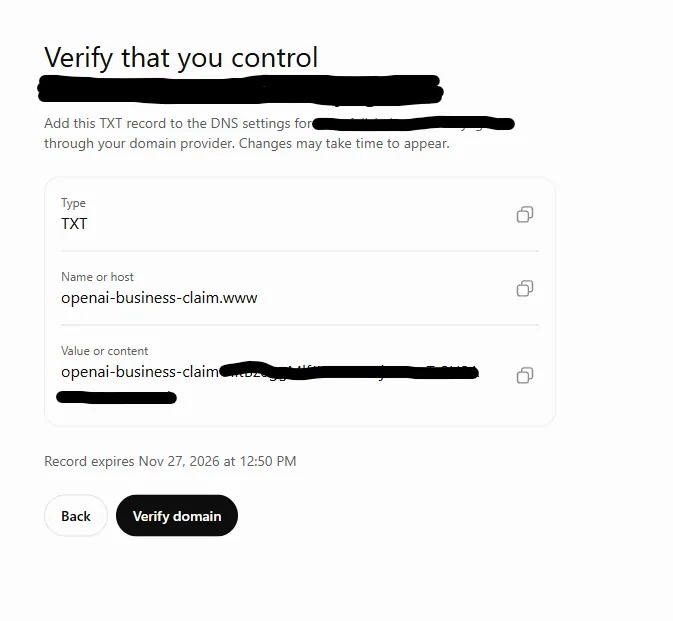
Paste only the part of the name before your domain. Most DNS screens add your domain to the end on their own.
Match every detail to your Google Business Profile and your website, word for word. OpenAI reviews each change before it goes live. Check everything twice before you publish, because OpenAI support can’t delete or hide a published profile.
Where do I find my ChatGPT mentions?
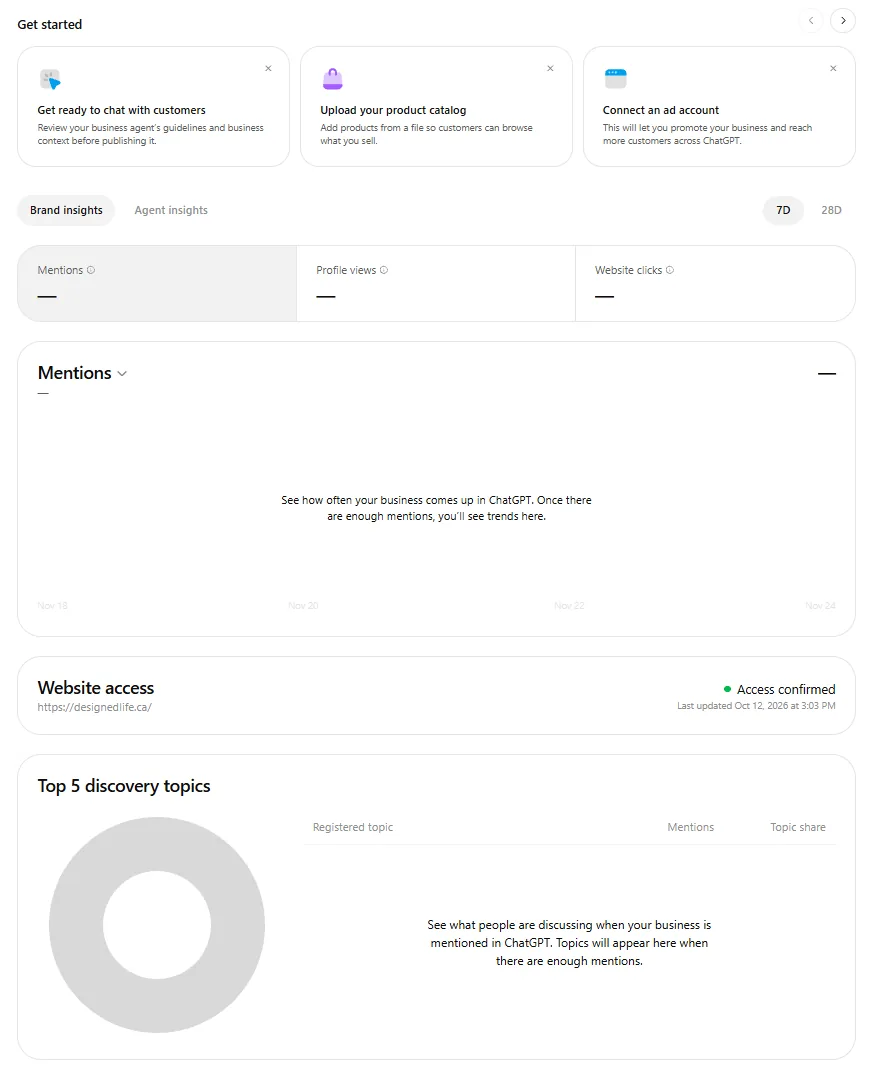
Open your business in Business Hub and look under Brand insights. Mentions, profile views and website clicks sit across the top. You can switch between the last 7 or 28 days. Your top five discovery topics sit further down.
Keep these in mind when you read it:
- Blank isn’t zero. A new profile shows dashes until there are enough mentions to chart. Ours was blank on day one.
- You see topics, not questions. The dashboard never shows the exact words people typed.
Write your numbers down the day they first appear. Next month, you’ll know whether anything you did made a difference.
How do I use my ChatGPT mentions to plan content?
Write more about the topics ChatGPT already connects you with. Once you’re showing up, the discovery topics show where you already appear. Building on them is faster than starting from scratch.
Our client’s dashboard showed 29 mentions in its first seven days. Most of its topics were people comparing local service providers. Content that helps homeowners compare and choose a contractor is where we’ll build next.
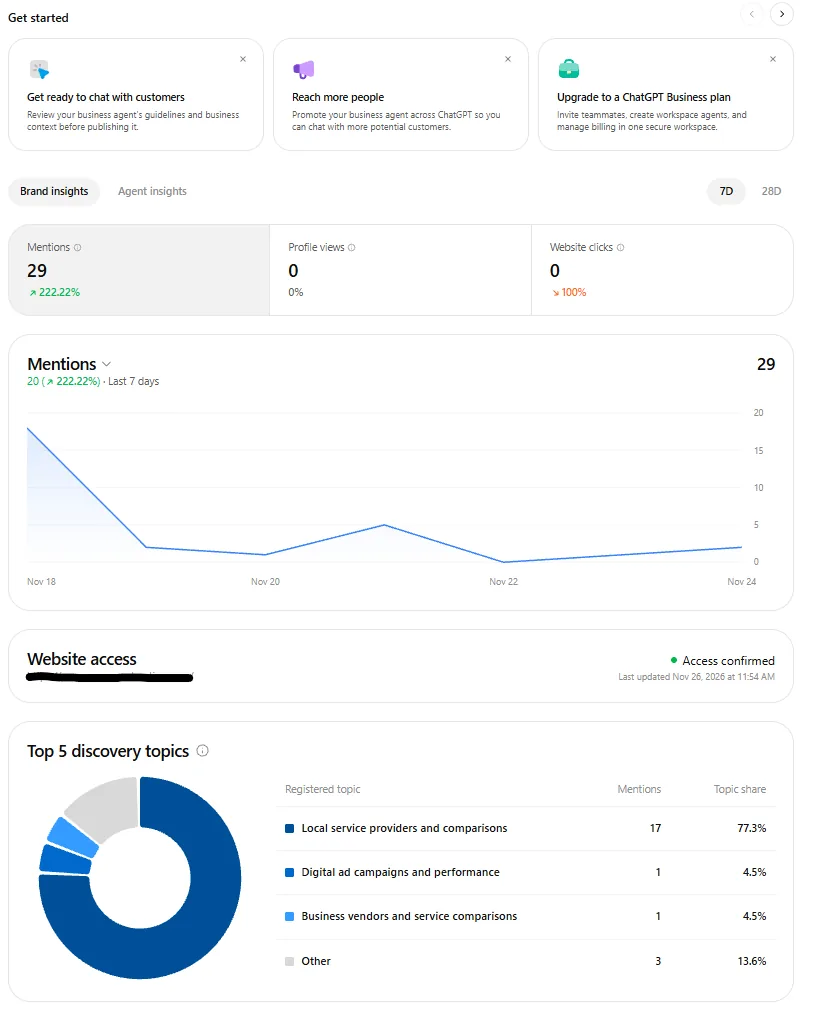
- List the discovery topics from your Insights page.
- Match each topic to the page on your site that covers it best.
- Strengthen those pages first. Answer the questions customers ask about each topic, in plain words.
- Treat a topic with no page as your next blog.
Check your numbers again a month later, beside your saved ChatGPT answers. Rising mentions on a topic you wrote about tell you the content is working.
Will Business Hub get my business recommended more?
No. OpenAI says claiming a profile doesn’t guarantee more recommendations or control what ChatGPT says. ChatGPT search draws on several sources, and Bing is one of them. We set every client up on Bing for that reason. Our guide on how to get your business to show up on ChatGPT covers the rest. Ongoing SEO work on your website is still what earns the mentions.
ChatGPT mentions questions
Does it cost anything? No. Business Hub is free at launch, and you don’t need a ChatGPT ads account.
How long does approval take? OpenAI doesn’t give a time. It reviews your claim, your identity check and each profile change, and emails you each decision.
Can I track several businesses from one account? Not in one place yet. Each brand is claimed and managed on its own, and claiming your main brand doesn’t claim its locations.
Is this the same as ChatGPT Business? No. ChatGPT Business is a paid plan for teams. Business Hub is the free profile tool.
Stuck on the domain step or the identity check? In a complimentary 1-hour consult, we walk through your setup with you.